Good SaaS dashboard design lets a person open the screen and know, within a few seconds, whether they need to act. I’ve spent 7+ years designing dashboards, admin panels and internal tools for B2B SaaS and AI teams across healthcare, fintech, HR, e-commerce and operations. Most of that work sits under NDA, so this guide uses six dashboards from my public portfolio and explains the layout decisions behind each one.
If you’re a founder or product lead about to design (or redesign) a dashboard, these are the questions I ask before I draw a single chart.
What makes good SaaS dashboard design?
A dashboard is the screen your customers see most. In a B2B product it is often the first thing they open each morning, and the one they screenshot for their boss, so if it’s confusing, the whole product feels confusing.
Most of the guides ranking for this topic repeat the same principles about users, hierarchy and chart choice. I agree with them, but they rarely say what to do when you have five user roles and messy data, and the sales team promises a new widget every month.
The test I use fits on a sticky note. Each screen should exist for a decision someone makes over and over. Every number on it should come with something that says whether it’s good, like a target or last month’s value. And every summary should link to the records behind it, because a dashboard that dead-ends sends people back to spreadsheets.
What should a B2B SaaS dashboard show first?
I spend more discovery time on this question than any other, and it’s the one teams most often skip. They usually start from a list of every metric the database can return, and end up with a grid of equally sized cards where nothing stands out.
One question per screen
I ask the team to finish this sentence for each main user: “When they open the dashboard, they want to know ___.” For a finance lead it might be “Do we have enough cash for the next 30 days?” For an HR manager, “Who is missing today, and does payroll need anything from me?”
That sentence decides the top-left of the screen, which is where people look first on a left-to-right layout. The answer gets the biggest type and the most space. Supporting metrics go in a row beneath it, and detail tables go further down or behind a click.
Sometimes the team gives me four different answers for the same role. I take that as a sign the role needs tabs or saved views, because one screen can’t hold four answers without getting crowded.
Context makes a number readable
“$48,200” means nothing on its own. “$48,200, up 12% from last month, 80% of target” tells you whether to relax. I add a comparison to almost every headline metric, usually the previous period, a target or a benchmark. Which one depends on what the user actually judges themselves against. Once you pick, use it on every card, so people only have to learn to read it once.
How do you design a dashboard for different user roles?
This is where B2B dashboard UX differs most from consumer apps. A single account might hold an admin, a manager, a team member and a read-only finance user, and each needs something different from the same data.
The MVPs I work on usually launch with 3 to 5 user roles, and I map them before I touch layouts. For each role I write down what they can see and edit, and which numbers they get blamed for when things go wrong. That usually lands on one of two patterns.
- One dashboard, filtered by permission. The layout stays the same and cards hide or show based on role. I use this when roles share most of their questions.
- Separate home screens per role. A manager gets a team overview and an individual gets “my work”. I use this when the questions differ.
If you’re unsure, decide this early anyway. Permissions touch every screen, so changing the pattern late means reworking most of the product. I go deeper on it in how I plan admin panels around user roles.
Dashboard design examples: six B2B dashboards I designed
These six come from the gallery on my homepage. All of them are portfolio projects, not client work. Each one is me working through the layout problem a particular product type raises.
1. Fintech analytics product with a dark dashboard UI
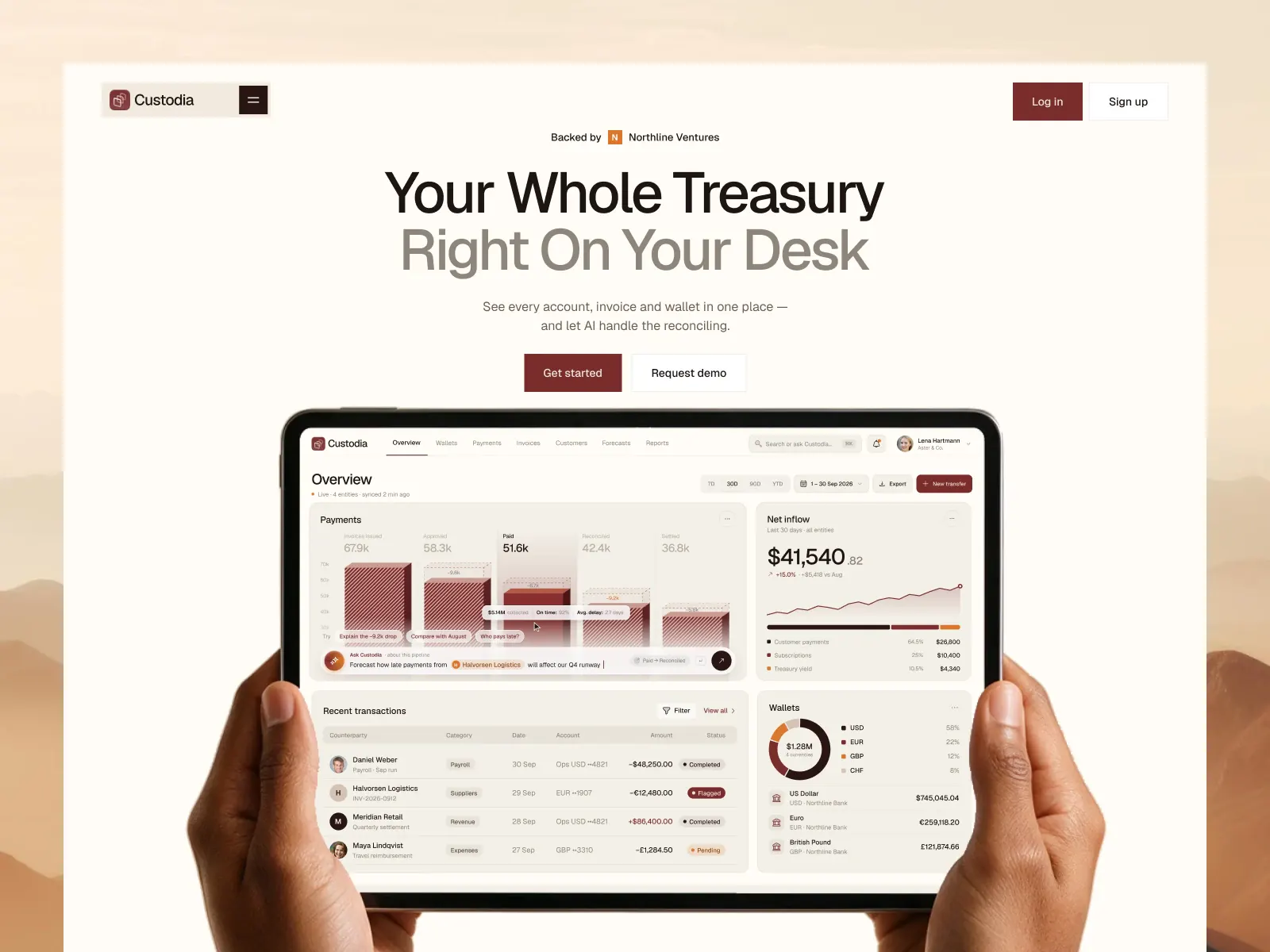
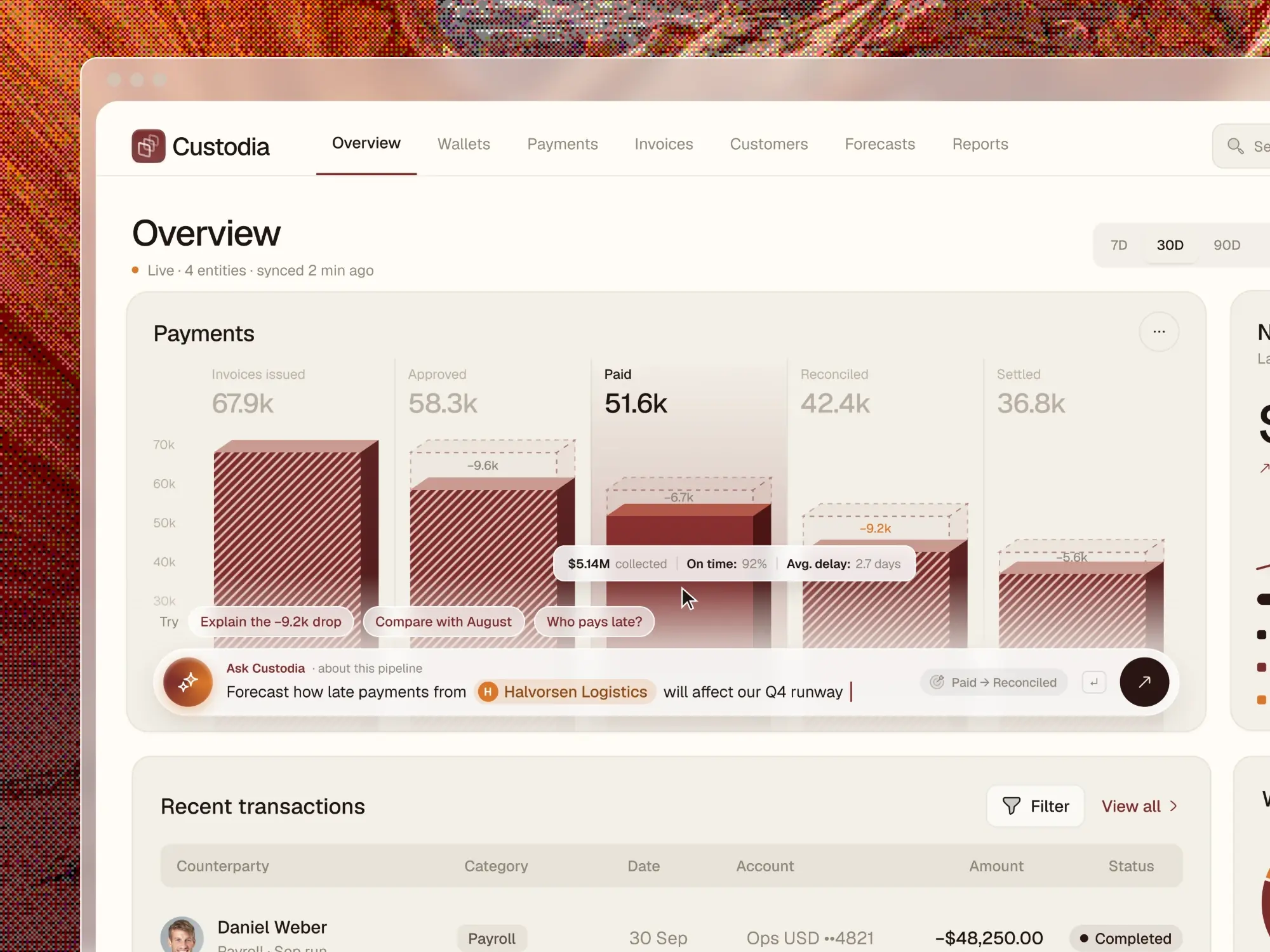
This piece is a marketing landing page that uses the dashboard as its hero. The screenshot has to make sense to a visitor who has never used the product, in the few seconds before they scroll.
I simplified the dashboard on the page on purpose. It has fewer cards and larger numbers, and one chart takes most of the space. A dashboard inside a product can be denser because users learn it over time, so I treat the landing page version as its own design and let the two share a visual language.
2. E-commerce analytics dashboard with revenue charts
E-commerce teams compare periods constantly, today against yesterday or this campaign against the last one. So the time-range control goes high on the page, and every chart and card responds to it.
Revenue gets the main chart because the store owner checks it first. Orders, average order value and conversion sit in a row of smaller cards above or beside it. The table of top products sits lower, since it answers the follow-up question “what drove that number?”
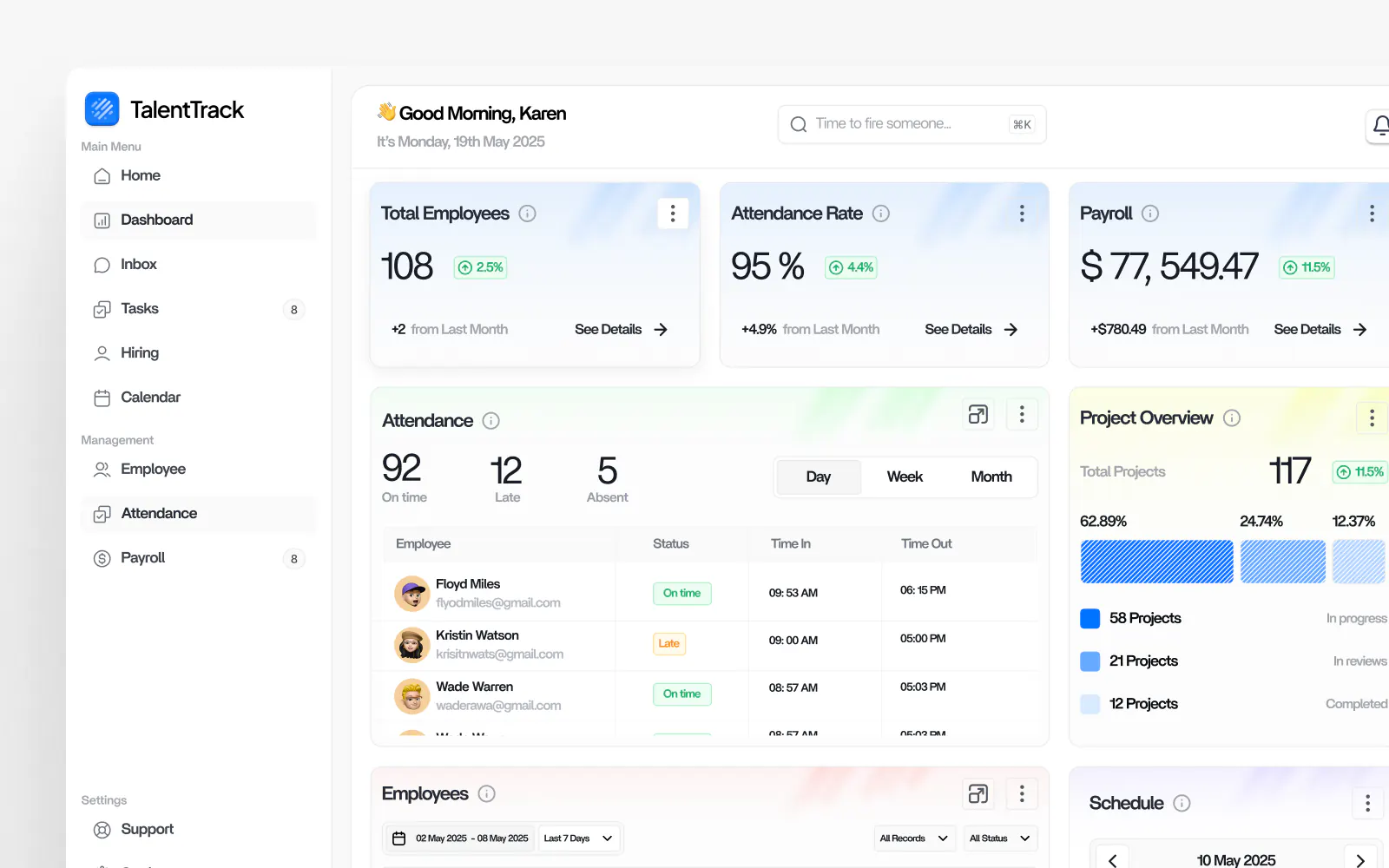
3. HR dashboard with attendance and payroll overview
HR dashboards mix daily and monthly work. When someone is absent or late, a manager has to respond today. Payroll happens once a month and has to be right, so what people need from it is a clear status.
I keep the two visually apart. Today’s attendance goes at the top with counts and a short list of exceptions, because exceptions are what an HR manager acts on. Payroll gets a status block (draft, pending approval, paid) and a date for the next run. Put both in one grid of equal cards and the late arrival hides among the routine payroll numbers. Roles matter most on this kind of screen too, since far fewer people should see salary data than attendance.
4. Dark fintech dashboard with wallet and cash flow
Wallet and cash flow screens tell someone how much they have and where it is going. The balance belongs in the most prominent spot, with income and spending as two clearly coloured series in the cash flow chart.
Dark interfaces are popular in fintech, and they’re easy to get wrong. Contrast drops quickly on dark backgrounds, and red/green for negative/positive fails for people with colour vision deficiency. I pair colour with arrows or +/- labels so the meaning holds up in greyscale. I also check text contrast against the actual card colour, since checking against the page background gives you a number that’s too optimistic.
5. Dark crypto trading dashboard
Trading screens are the densest dashboards I design. They’re also the only kind where I think cramming a lot onto one screen is the right call. Traders want price, chart, order book and their open positions visible together, because switching tabs during a trade costs money.
In this concept, a strict grid keeps that density readable. I use tabular numbers so columns of figures line up and don’t jitter when they update, and the price chart gets the most space. Buy and sell actions never move, so muscle memory works.
6. CRM SaaS with a sales pipeline dashboard
Sales reps move deals from stage to stage every day, so a pipeline dashboard gets used as a workflow tool. The layout leans on a board where each column is a pipeline stage, with the stage total in the column header.
The summary metrics above the pipeline (open value, deals won this month, win rate) give a manager a reason to scroll down to the board, and each one should filter or link into it. Reps and sales managers usually want different things here. A rep wants their own deals, and a manager wants the whole team.
SaaS dashboard best practices I use on every project
These hold up whether the product is fintech or HR, and none of them cost much to do.
- I design empty, loading and error states first. A new account has no data, and a trial user who lands on a grid of zeros tends to leave. I design an empty state that tells them what to do next, often connecting a data source or inviting a teammate. My SaaS MVP UX checklist covers these states in more detail.
- Cards come from a component system. Every metric card, chart frame and table uses shared components with defined variants. Six months later, when the team adds a metric I never saw, it still looks like part of the product. I hand over developer-ready Figma files with these components documented.
- Real data is longer than mockup data. Company names run long, currency values gain digits, and some customers have 400 rows where the mockup had 5. I’d rather find the broken card in Figma than in a support ticket, so I fill mockups with realistic data from the start.
- Date range and global filters go in one place at the top, and they apply to everything on the screen. If a card ignores the global filter, I label it.
- Every summary number links to the records behind it, so nobody has to export a spreadsheet to see what’s inside.
- Many B2B users work on 13-inch laptops with a browser sidebar open, so I test layouts at those widths as well as on a large monitor.
I also run a short review with real users or the team’s customer-facing staff before high-fidelity design. On one client project, feedback led me to move the most-used metric to the top of the dashboard.
How long does SaaS dashboard design take, and what does it cost?
Mostly it depends on how many roles and screens there are, and whether a design system exists already. One dashboard screen takes me 1 to 2 days. A full dashboard with user roles and a component system takes 3 to 6 weeks.
I work on a monthly plan at $2,999/month, or per project. I’ve broken down pricing models and what affects the budget in what it costs to hire a SaaS product designer.
FAQ
What is SaaS dashboard design?
SaaS dashboard design is the UX and UI work behind the overview screens in a software product: choosing which metrics appear, how they’re laid out, how they change per user role and how they lead to the detail behind them.
How many metrics should a SaaS dashboard show?
As few as it takes to answer the user’s main question. I start with one headline metric and a small row of supporting ones, then move everything else to secondary views or reports.
Should a B2B dashboard use dark mode?
Offer it if your users work long sessions or ask for it, as traders and developers often do. Design and test both themes with the same components, and check contrast and colour meaning separately in each.
What do I need ready before hiring a dashboard designer?
A list of user roles, the questions each role needs answered, and access to sample or real data. If you don’t have those yet, discovery is where I start, and we work them out together.
Book a free intro call
If you’re planning a new dashboard or your current one has grown hard to use, I’m happy to look at it with you. I work with early-stage and scaling B2B SaaS and AI teams from discovery through high-fidelity UI, and I hand over developer-ready Figma files your engineers can build from.
Book a free intro call and tell me what your users need to see first.